Picture the server nobody wants to touch. It runs one application that the business can’t do without, it was set up by someone who has long since moved on, and the supplier’s last word on the subject was a polite “we haven’t tested that.” If that server runs Windows Server 2016, it has a date attached to it, and that date is 12 January 2027.
Microsoft’s lifecycle page for Windows Server 2016 shows mainstream support ending in January 2022, so what’s left is security updates and little else, and on 12 January 2027 those stop too. The table itself shows 13 January, but it uses the same convention for 2019, 2022 and 2025 of listing the day after the real end, and Microsoft’s announcements give 12 January, so that’s the day to plan against. Nothing switches off on the day. The server carries on running, and the first month after it will feel the same as the last. The difference is that anything found in it from then on stays found. Microsoft’s extended update documentation for the older Windows Server 2012 makes the general point that losing security updates “can cause security or compliance issues and put business applications at risk”, and the same logic applies here.
As at mid-September 2026 the end date was a little under four months away, which can sound comfortable until you subtract a change freeze at the end of December and the time it takes a supplier to answer an email.
Find out what you’re running
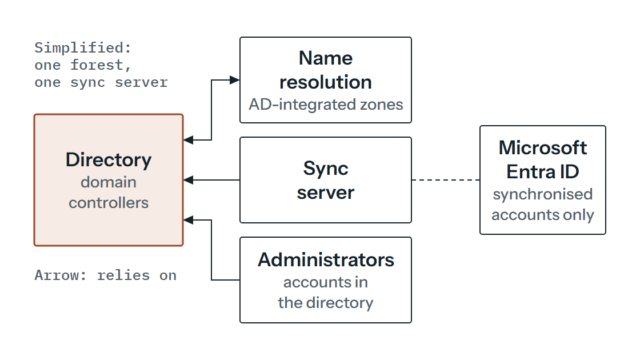
Before choosing a route, build the list. It’s tempting to count Windows Server 2016 machines and stop there, but the number that decides your plan is how many different jobs they do. For each server, write down what it’s for, which applications run on it, who owns each of them, whether the supplier supports a newer Windows Server in writing, and what depends on it. Domain controllers belong on a separate line, because Microsoft has its own guidance for upgrading them and they’re not a job to fold into a general sweep.
Two details are worth checking early. If any of the machines are Essentials edition, look at the extended update terms before assuming they’re covered, because Microsoft’s Azure Arc documentation lists Standard and Datacenter only. And every step up in Windows Server release needs its own licence, so a move you thought was free may turn out to need a purchase order. Both are far easier to find out early than in December.
When the list is done, sort it into three piles: servers that can move easily, servers that can move but need a project, and servers that can’t move in time. That third pile is the one the rest of this piece keeps coming back to.
The four ways out
The upgrade planning page describes in-place upgrade, clean install and migration as the main routes, and the Windows Server team’s announcement adds moving to Azure and, for servers that stay where they are, Extended Security Updates. In practice that’s four choices, and most estates end up using more than one.
Upgrade in place
An in-place upgrade installs the newer version over the old one and keeps settings, roles and data. From Windows Server 2016, the table shows installation media taking you to 2019, 2022 or 2025, and the Windows Update route is listed only for servers already on 2019 or 2022, so for these machines it means media. Some conditions will catch you out if you read them late: NIC Teaming has to be switched off first, servers booted from a VHD aren’t supported, you can’t swap Server Core for Desktop Experience during the upgrade and you can’t change language. The page also says to back up before you start, which is a good moment to prove your backups restore, as our backup strategy post argues.
It’s the quickest route when the server is simple and the application’s supplier is happy. We’d steer a server with a long and murky history away from this route, because an upgrade carries every old setting forward with it.
Rebuild and migrate
The alternative is to build a new server on a supported release and move the application and its data across, using the migration approach for roles and features that the upgrade page describes. It costs more effort and it needs somewhere to build, but you end up with a clean machine and a written record of what the application needs, which is more than many estates have. For the awkward server we’d start here, because it forces the questions an upgrade lets you skip.
Move to Azure
The same announcement lists moving to Azure as an option. It doesn’t remove the application questions: the software still has to run on a supported release, and it still has to cope with living somewhere else. What it changes is where the machine runs. Check how Azure hosting affects extended update terms for Windows Server 2016 before you count on any particular outcome, since the 2016 documentation doesn’t spell it out.
Pay for time with Extended Security Updates
The overview of the older Windows Server 2012 extended updates calls them a last resort, and we’d treat them the same way here. The February 2026 announcement frames them as a way to keep running Windows Server 2016 without disrupting business-critical applications. They cover Critical and Important security fixes for up to three years, through 2030, and bring no new features, no customer-requested non-security hotfixes and no design changes.
They’re delivered through Azure Arc, so each server needs the Azure Connected Machine agent installed, at version 1.62 or higher. That agent has to be able to reach Azure, whether directly, through a proxy or over a private link, so check your firewall rules early. On-premises machines also need Software Assurance or an equivalent server subscription, which is a licensing question we’d settle before anything else. The Azure Arc page says you could configure the updates in the Azure portal from 3 August 2026, with billing beginning on 13 January 2027. Microsoft doesn’t publish a price in this documentation, so ask before you build a budget around one.
The thing to hold on to is that billing starts the day after support ends, on 13 January 2027. Extended updates buy you time to finish the job and they don’t finish it.
Which release to land on
The target matters more than it first appears, because each release has its own support clock. As at September 2026 the lifecycle pages give these end dates:
| Release | Mainstream support ends | Extended support ends |
|---|---|---|
| Windows Server 2019 | January 2024 | January 2029 |
| Windows Server 2022 | October 2026 | October 2031 |
| Windows Server 2025 | November 2029 | November 2034 |
Moving to 2019, which has been in extended-only support since January 2024, gets you off the 2027 cliff but leaves you looking at another one in January 2029, which means doing this whole exercise again in about two years. Windows Server 2022 gives you security updates into 2031, though its mainstream phase ends in October 2026. Windows Server 2025 is the newest release in the upgrade table and has the longest runway. A newer release isn’t automatically right, since the application has to support it, but a supplier who will only support 2019 is telling you something about how long that application will last. Our default would be the newest release the supplier will support in writing.
One more point from the upgrade page: an in-place upgrade to Windows Server 2025 can span up to four versions on a server that isn’t clustered, while earlier targets manage two, so 2016 to 2025 is a supported single in-place move. Failover clusters are different, since a rolling upgrade there advances one version at a time.
When a server can’t move in time
Sooner or later there’s one that can’t. The application isn’t supported on anything newer, or the replacement isn’t ready, or the person who understands it is away. You have two honest choices, which are paying for extended updates as a bridge or accepting the risk for a defined period, and either needs an end date written down. A bridge with no end date turns into the next problem.
Whichever you pick, we’d shrink what the server can reach and what can reach it. That means keeping it off the open internet, putting it in its own network segment, limiting who can sign in and how, watching it more closely than its neighbours and checking that you can restore it. None of that comes from Microsoft’s documentation. It’s how we’d approach it, and it reduces exposure without removing the problem. If the server can’t be isolated properly, or nobody is confident it can be restored, that’s when a second opinion on the design is worth having. Our continuing support page describes how ongoing care of servers like this is arranged.
If you’ve got a few Windows Server 2016 machines and aren’t sure which pile each belongs in, or you’d like a second opinion on whether an upgrade, a rebuild or extended updates fits a particular application, get in touch and we can go through the list together.