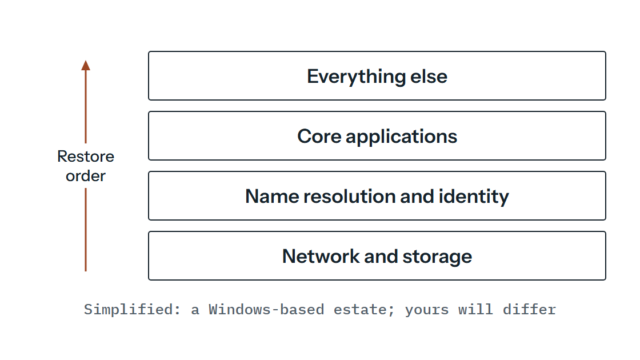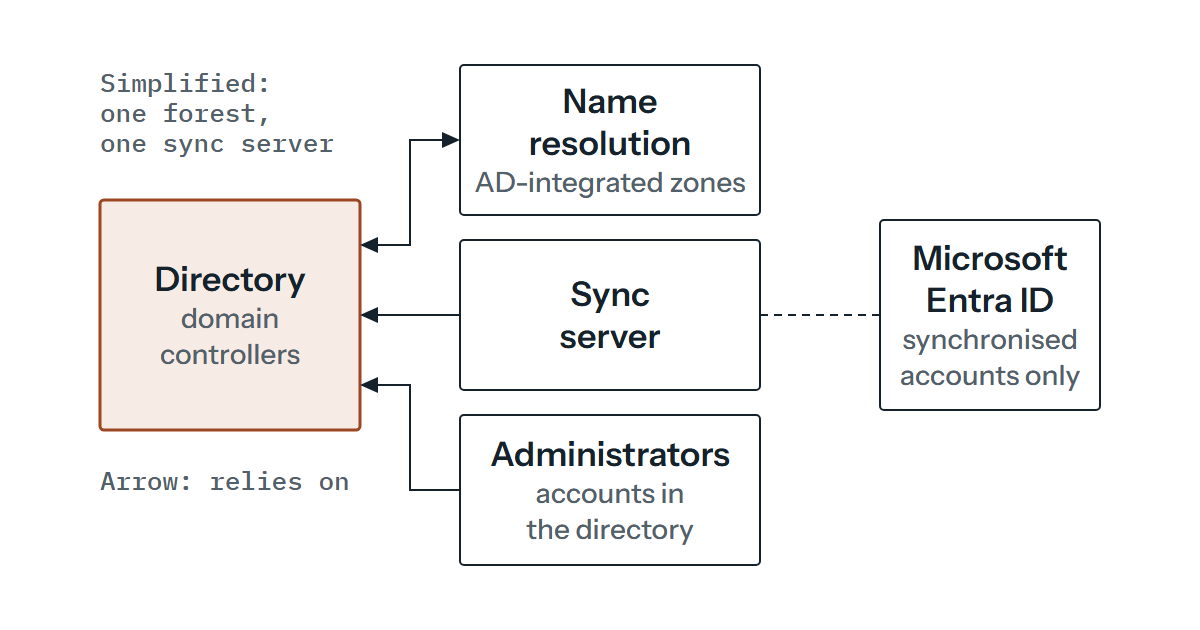
Most recovery plans start from a server that’s gone: a file server, a database host, a virtual machine that won’t boot. You restore it, test it and move on. The harder case is when the thing that fails is the directory that decides who may sign in to everything else, because then the restore itself needs sign-in, name resolution and administrators whose accounts live in the thing you’re trying to rebuild.
This is written for people who already run a Windows Server Active Directory forest, quite possibly synchronised to Microsoft Entra ID, and who are comfortable with domain controllers, operations master roles and SYSVOL. It isn’t a runbook for a live forest. Microsoft’s own forest recovery guide calls its steps a template for you to customise, and the examples below are illustrations only.
Decide whether it’s a forest failure at all
The guide covers one specific situation: a forest-wide failure that leaves every domain controller unable to function normally. Think of every DC corrupted or damaged, a script spreading corruption across the forest, a malicious or conflicting schema change, or a state where no DC can replicate, accept changes or have new DCs installed. Microsoft says that in many cases forest recovery should be the last option, and its prerequisites assume you’ve already found the cause, in consultation with Microsoft Support.
It’s also not a compromise playbook. The guide says it doesn’t cover security recommendations for recovering a forest that has been hacked or compromised, although it does add steps such as resetting administrative account passwords before more DCs go back in if you suspect an intrusion. So the first design question isn’t how to restore. It’s how you’d tell a forest-wide failure from something smaller, like one bad DC or a deleted OU, where, in our view, rolling the whole forest back would throw away more than it saves. We’d write that test down in advance, along with who makes the call, because the middle of an outage is a poor time to invent it.
What a rollback takes away
A forest recovery restores each domain to the state of its last trusted backup, and everything created or changed after that point is gone: objects, updates to existing objects, configuration and schema changes. That sounds obvious until you have to decide which backup counts as trusted. A recent backup recovers more useful data but raises the risk of reintroducing whatever caused the failure, so Microsoft’s advice is to use one from a few days before it. That only works if you know when the failure began, which is why the guide strongly recommends keeping detailed AD DS health logs every day.
Most of the other decisions depend on how you’ve built things rather than on the product. The wbadmin restore of the first DC needs a backup that explicitly includes system state, and a full server backup used for full server recovery won’t do for that step, so check that your backup tool captures system state on the DCs at all. Shelf life is set by your forest: with Active Directory Recycle Bin enabled a backup is usable for the lesser of deletedObjectLifetime and tombstoneLifetime, and without it the limit is the tombstoneLifetime. You want at least two writeable DCs per domain backed up, because an RODC backup can’t restore a writeable DC.
Microsoft also recommends a dedicated restore DC per domain, so that you rehearse and recover from the same known configuration. Restoring a system state backup to a new installation of Windows Server isn’t supported, on new hardware or on the same hardware. The route the guide gives is to reinstall on the same hardware, do a full server restore and then a system state restore.
Then there are the credentials. You need a Domain Admin password for each domain and the DSRM password, and you may need BitLocker recovery keys as well. If the only copy of any of those lives in the directory you’re restoring, you’ve built a circular dependency. That’s our inference rather than a Microsoft statement, but it follows directly, and we’d keep the copies somewhere outside the directory, with controlled access, and check them at every rehearsal.
The first domain controller is the delicate part
Per domain, the first job is to restore one writeable DC in isolation, with its network cable unplugged or its virtual network adapter detached, and ideally with every other writeable DC shut down, especially the operations master holders. In a large forest that last condition is hard to guarantee, but it’s the guide’s preferred protection against reintroducing dangerous data.
On that first DC you do a nonauthoritative restore of AD DS together with an authoritative restore of SYSVOL. Microsoft’s page words the SYSVOL part two ways. The step says to do it on the first DC in each domain, while the warning says to do an authoritative restore only on the first DC restored in the forest root domain, because doing it elsewhere causes SYSVOL replication conflicts. Resolve that with Microsoft Support and in your lab before relying on either reading. Every DC added later resynchronises its SYSVOL from the copy made authoritative. The syntax shown for the two halves of the job looks like this (a template; the placeholders are yours to fill):
wbadmin start systemstatebackup -backuptarget:<targetDrive>:
wbadmin start systemstaterecovery <otheroptions> -authsysvol
Roles and identifiers come next, and each step closes off a specific failure. Seizing the operations master roles onto the restored DC settles where they are, because the old holders can’t be relied on. Cleaning up the metadata of the writeable DCs you aren’t restoring matters because, until it’s done, a restored RID master won’t take the RID master role and can’t issue new RIDs. The RID pool is raised by 100,000 because an account created after your backup no longer exists but its access rights might, so a new account could be issued the same SID and inherit them. Passwords are reset twice, for the DC’s computer account and for krbtgt, which keeps two passwords in its history so that only two resets clear the pre-failure one.
The krbtgt reset has a cost in time. The page says to wait 10 hours between the two resets, the default maximum lifetime for user and service tickets, so any recovery that includes it has at least 10 hours built in, and your plan should say so.
Two more steps keep bad data from coming back. In a forest with several domains you clear the global catalog flag on a restored DC that was a global catalog before the failure, because one restored from a newer backup than its neighbours can hold lingering objects. And group managed service accounts may need re-creating, since their password generation details may have been exposed to an attacker. Once the restored DCs share a network, repadmin /replsum and DCDiag /v are the checks for replication and health, and each restored DC gets a fresh backup before you redeploy the rest.
The rest of your estate leans on DNS and time
Microsoft’s prerequisites assume an Active Directory-integrated DNS zone for each domain, and if yours isn’t built that way you’ll need your own measures. The first restored DC points at itself for DNS, and the others in the forest then point at the first. If you restore physical DCs onto an isolated network and their IP addresses have to change, the DNS records will be wrong, and without a global catalog secure dynamic updates fail. Virtual DCs avoid this because they can move to a new virtual network without changing address, which is one reason they’re recommended as the first to be restored. Time matters too, since the PDC emulator in the forest root needs configuring to take time from an external source.
One more environment-specific trap sits in the DC selection advice. A DC where BitLocker Network Unlock is the only key protector, on a network that uses Windows Deployment Services, can’t be the first one you restore, because it needs Active Directory to be working already.
Entra ID: the recycle bin is real, and so are its edges
Entra ID has no forest to roll back, so recoverability looks different and Microsoft’s pages describe it in terms of what survives a deletion. Soft-deleted objects sit in a recycle bin for 30 days, keep their properties and can be restored, through the portal for the common types and for some only through the Graph API. There are exceptions Microsoft lists (some multi-tenant applications, for example, aren’t removed automatically after 30 days). After that they’re hard deleted, and Microsoft’s recover from deletions page is blunt that administrators and Microsoft can’t restore hard-deleted items: you re-create and reconfigure them.
| What happened | What Microsoft’s pages say | Your way back |
|---|---|---|
| A supported object type was deleted | Soft deleted, restorable for 30 days with properties kept | Restore it within the window |
| An unsupported type was deleted, or the 30 days passed | Hard deleted, can’t be recovered | Re-create from your own records |
| A setting was changed or misconfigured | Not a deletion, so the recycle bin doesn’t apply; the pages point you to your documented prior state | Reapply from your own records of the prior state |
Which object types count as soft-deletable is a place where the pages disagree. The overview’s introduction names four types (its audit table also shows service principals), while the deletions page’s audit-log section names four and its “Hard deletions” list names eight, adding service principals, administrative units, Conditional Access policies and named locations, with the portal steps for the last two labelled Preview. We’d plan on the shorter list (users, Microsoft 365 Groups, cloud security groups and applications) as certain, treat the others as documented but worth checking in your own tenant, and keep your own exports of everything.
Restoring isn’t always a clean undo. The advice for a restored Conditional Access policy is report-only mode first, with a review before you switch it on, and a recovered named location isn’t marked as trusted until you do that yourself. A deleted group can also take access with it: removing a cloud security group used for application assignment stops its members reaching those applications. The audit log records a delete either way and doesn’t distinguish a group’s type, so you can’t always tell from the log whether a deleted group can come back. That’s why the recoverability guidance says your documentation of the known good state should include the group type for each group.
Your own exports are the backup for everything the recycle bin doesn’t cover. The suggested tools are Microsoft Graph, the Microsoft Entra Exporter and Microsoft 365 Desired State Configuration, with the output kept where few admins can reach it. Some settings, such as legacy multifactor authentication portal settings for Application Proxy and federation, might not export and need documenting by hand, and where no API exists the guidance falls back to screenshots. A configuration change that goes wrong isn’t a deletion, so nothing waits in the recycle bin for it. Your exports and change records are what you reapply from.
Sync is where the two failures meet
If the directory is rebuilt and then synchronised upwards, the sync server is the seam between the two recoveries. Microsoft Entra Connect Sync can only run active-passive, and a server in staging mode imports and synchronises but doesn’t export, and doesn’t run password sync or writeback until you take it out of staging. Before a switch Microsoft’s advice is to run an initial sync cycle, check the pending exports and confirm accidental-delete protection is configured. If the active server can’t be reached, shut it down or isolate it so it can’t regain access unexpectedly and compete with the new one.
The documented soft-delete scenarios include a user moving out of scope for synchronisation. What happens to synchronised accounts when an on-premises directory comes back from an earlier backup depends on your sync scope and configuration, and the pages don’t walk through it. That’s a reason to hold synchronisation until the restored directory has been checked, treat the first export as a change you review, and rehearse the sequence against a test tenant ahead of time.
Emergency access that doesn’t depend on the directory
The accounts you’d use to get back in shouldn’t live in the directory that’s down. The baseline in Microsoft’s emergency access account guidance is two or more cloud-only accounts on the onmicrosoft.com domain, neither federated nor synchronised from on-premises. The reasons given include a federation outage, MFA devices being unavailable and the last Global Administrator leaving. Authentication should differ from your normal administrators’ (a passkey or a certificate, for example), the Global Administrator assignment should be permanent and active rather than eligible, and sign-ins should be monitored with alerts and the accounts validated at least every 90 days. Emergency access for on-premises systems and for the cloud should also stay separate, with no dependency of one on the other.
What to rehearse, and what’s yours to decide
Rehearsal is the other half. For the forest that means practising the recovery at least once a year and again when membership of Enterprise Admins or Domain Admins changes, with the procedures tested in a lab using production backups. For Entra it means rehearsing with test objects, ideally in a test tenant. Neither document can tell you how many domains you have or whether your DNS is integrated, whether your DCs are virtual, how your backups capture system state, whether you federate or where the credentials sit. Those answers decide how much of the above applies, so if you only do one thing, work through them and write them down.
None of this is incident response, and if a forest has failed, the guide itself points you to Microsoft Support. What can be done in advance is a review of who holds the privileged groups, how the directory is backed up, whether emergency access accounts exist and whether the sync arrangement has a plan for failure. That’s where outside help is justified: when nobody in-house has run a forest recovery, an independent read of the design is a sensible way to find its gaps before an outage does. Where agreed in the scope, our security and compliance work can include configuration and access reviews, with written recommendations on what to change.
If you’d like a second pair of eyes on how your directory, backups, sync and emergency accounts depend on one another, get in touch and tell us what you’re running.