Somewhere in many tenants there’s a folder of PowerShell that nobody wants to touch. A scheduled task builds a leavers report, a script from years ago assigns licences, and most of them begin with Connect-MsolService or Connect-AzureAD. As at March 2024, Microsoft’s documentation says the modules behind those calls are planned for deprecation on 30 March 2024, which turns an old folder into a project with a date on it.
The project is about permissions more than cmdlets, which is the kind of identity and access groundwork our Microsoft 365 and Azure services cover. We’d work in a simple order: find what you have, map it by permission and endpoint rather than by name, and prove the new script behaves before the old one goes. It assumes you’re comfortable with PowerShell and Microsoft Entra ID (formerly Azure Active Directory). Every snippet is an illustration with placeholders that we haven’t run against a tenant, so try each in a test tenant first.
What Microsoft said about the dates
The MSOnline overview gives 30 March 2024 as the planned deprecation date for MSOnline, and the AzureAD module’s install page gives the same date for Azure AD PowerShell. The page on the Microsoft Entra rename repeats it for Azure AD PowerShell for Graph. That page also answers a question people ask: almost all of the AzureAD cmdlets keep AzureAD in their names, and Microsoft says these won’t change, whatever the product is called. All three pages name Microsoft Graph PowerShell as the recommended replacement.
As at March 2024 the date was a plan, not a switch-off. Microsoft’s deprecation update, published on 15 June 2023, says “We plan to deprecate” the modules on 30 March 2024. After that date, it says, “the only support offered for these PowerShell modules will be support in migrating to Microsoft Graph PowerShell SDK”, only security fixes will be offered, and once deprecated they “will continue to work for a minimum of six (6) months before being retired”. So the date starts a clock rather than stopping anything on the day, though it’s a short clock for a script estate of any size.
The same update said the legacy licence-assignment cmdlets (Set-AzureADUserLicense, Set-MsolUserLicense and the -LicenseAssignment and -LicenseOptions parameters of New-MsolUser) were already retired. A script still using one of them is an urgent job, not a 30 March one.
There’s a dependency underneath as well. The migration FAQ says Azure AD PowerShell is one of the applications that use the Azure AD Graph API, an interface Microsoft had already announced it was retiring, with a phased shutdown of the endpoint. Even apart from its own date, the AzureAD module sits on a retiring foundation.
Find out what you have
Start with a list, and before you open any editor decide what you want to know about each script. Microsoft’s migration guide suggests recording purpose, location, how often it runs, how important it is, its length, the cmdlets it calls and how often, whether it’s still required and what could be improved. It also suggests an optional score (Critical 4, High 3, Medium 2, Low 1) so you can start with the least critical scripts. The “still required” column is the cheap win: a script nobody can explain is a candidate for deletion, not migration.
A text search will give you the cmdlet column quickly, and this one only reads files.
# Illustration only: C:\Scripts is a placeholder. This reads script files and changes nothing.
$pattern = '\b(?:[A-Za-z]+-(?:AzureAD|Msol)\w*|AzureADPreview|AzureAD|MSOnline)\b'
Get-ChildItem -Path 'C:\Scripts\*' -Include '*.ps1', '*.psm1' -Recurse |
    Select-String -Pattern $pattern -AllMatches |
    ForEach-Object { $_.Matches.Value } |
    Group-Object |
    Sort-Object -Property Count -Descending
Select-String treats the pattern as a regular expression and is case-insensitive by default, and -AllMatches matters because a line can hold several calls. The pattern also catches the AzureADMS cmdlets, which is deliberate. The AzureAD module’s -AzureAD cmdlets call the Azure AD Graph endpoint while its -AzureADMS cmdlets call Microsoft Graph, so a script mixing the two is already half-way across and worth separating in your list.
A pattern match can’t see a command name built in a variable, a script held outside the folders you searched or a module imported by name that hides the calls inside it. Treat the output as the start of the inventory, then check the places scripts live: scheduled tasks, automation platforms and anywhere an administrator might keep a personal copy.
A map is a starting point, not a translation
Microsoft publishes a cmdlet map for both modules. As it stood on 13 March 2024, it listed 234 Azure AD rows and 97 MSOnline rows. Ten of the Azure AD rows and thirteen of the MSOnline rows had no Graph PowerShell cmdlet listed. Most of the Azure AD gaps were Application Proxy cmdlets, and the MSOnline gaps included Get-MsolUserByStrongAuthentication and Reset-MsolStrongAuthenticationMethodByUpn. A script that depends on one of those needs a different approach, not a renaming job.
| Old cmdlet | What the map lists |
|---|---|
Get-AzureADUser, Get-MsolUser | Get-MgUser |
Get-AzureADUserMembership | Get-MgUserMemberOf |
Set-AzureADUser, Set-MsolUser | Update-MgUser |
Set-AzureADUserPassword | Update-MgUser |
Set-MsolUserPassword | Reset-MgUserAuthenticationMethodPassword |
Set-AzureADUserLicense, Set-MsolUserLicense, New-MsolLicenseOptions | Set-MgUserLicense |
Get-MsolAccountSku | Get-MgSubscribedSku |
The table shows why names mislead. Two password cmdlets that look alike land in different places, and three licence cmdlets collapse into one. The map also says nothing about parameters or filters. Microsoft’s guide treats those as separate steps, with limits such as -SearchString becoming -Search with -ConsistencyLevel eventual and nested parameters needing hash tables.
For each call, ask the other direction as well: what does it do on the wire? Find-MgGraphCommand takes a command or a URI and tells you which API path and HTTP method it uses, which makes the mapping checkable against the REST documentation.
# Illustration only: both commands are the examples on Microsoft's Find-MgGraphCommand page.
Find-MgGraphCommand -Command 'Get-MgUser'
Find-MgGraphCommand -Uri '/users/{id}'
Decide the permissions before you write the code
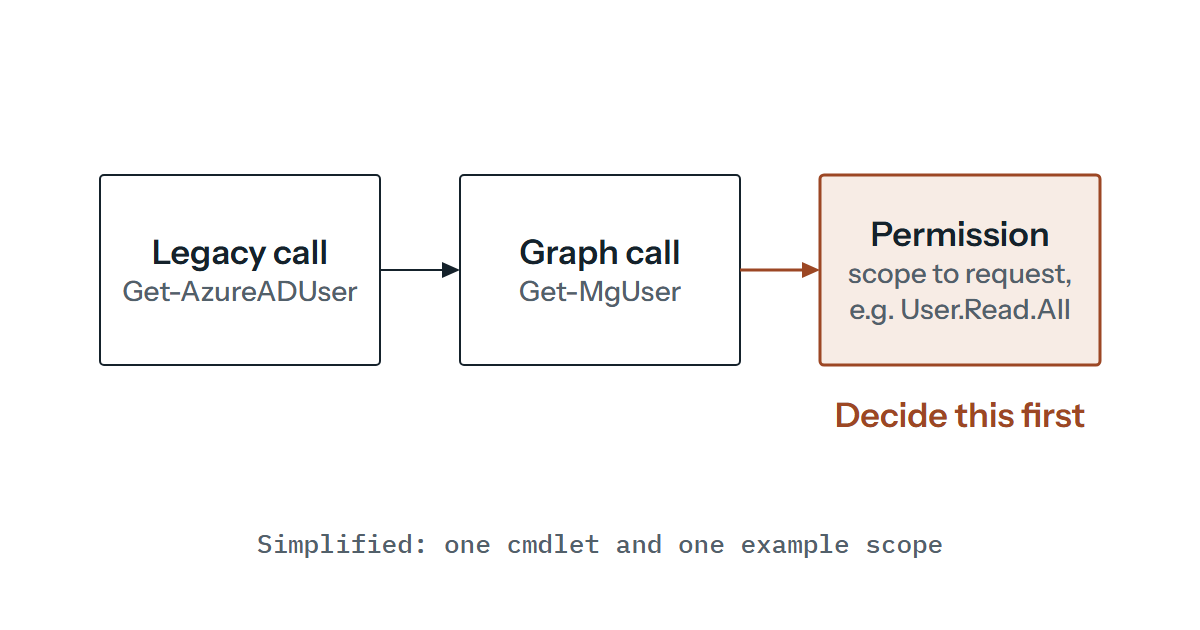
Microsoft Graph PowerShell permissions aren’t pre-authorised, as the migration guide stresses, so someone has to ask for each one deliberately. That makes permissions the first design decision for every script, and it’s where the work stops being mechanical.
The two sign-in modes behave differently. With delegated access the script acts for a signed-in person, and the permissions overview says its privileges are set by the permissions granted to the app and by the user’s own permissions. With application permissions the app can reach any data the permission covers, and only an administrator can consent to them. Same script, different risk: a delegated read scope run by a limited user sees less than the same scope run by a senior administrator, whereas an app-only scope sees all of it.
Pick scopes from the API documentation, not from the cmdlet listing. Find-MgGraphCommand itself warns that the permissions it displays don’t show privilege levels, and its sample for Get-MgUser lists read-write and Directory.AccessAsUser.All permissions beside the read ones. The List users page is clearer: the least privileged delegated permission is User.ReadBasic.All and the least privileged application permission is User.Read.All. Licence assignment needs User.ReadWrite.All in both modes, and the Set-MgUserLicense example also requests Organization.Read.All, which it needs to look up the SKU.
So the useful output of an inventory isn’t only a cmdlet list. It’s a table of script, calls, API paths and the smallest permission each needs, ready to turn into a consent request. If you want to isolate that consent from everyone else’s, Microsoft’s authentication guide describes registering a custom application for Graph PowerShell for that purpose.
Where the output will differ
Compare behaviour, not syntax. These differences are the ones most likely to change a report without raising an error.
Properties. The List users API returns only a limited set of properties by default (businessPhones, displayName, givenName, id, jobTitle, mail, mobilePhone, officeLocation, preferredLanguage, surname and userPrincipalName). Anything else, such as accountEnabled, has to be requested. In Get-MgUser that’s -Property.
# Illustration only: reads user objects; the scope is the one used in Microsoft's Get-MgUser examples.
Connect-MgGraph -Scopes 'User.Read.All'
Get-MgUser -All -Property 'id,displayName,accountEnabled' | Format-Table DisplayName, Id, AccountEnabled
Paging. Graph’s paging guidance says GET /users returns 100 results by default and hands back an @odata.nextLink until the results are exhausted. In Get-MgUser, -All is “List all pages” and -PageSize sets the page size. Microsoft’s app-only sample, commented “List first 50 users”, uses -PageSize 50 without -All, which implies that without -All you get one page. We couldn’t find that stated outright, so test it. A script that returned everything before the move and returns only a page after it is the failure to hunt for, so compare counts first.
Counting and searching. Some queries on directory objects only work as advanced queries, where Microsoft’s advanced query guide requires the ConsistencyLevel header set to eventual and, except for $search, the $count parameter. Without them, a count request either errors or has the count ignored. In Get-MgUser that’s -ConsistencyLevel eventual -CountVariable <name>.
Licences. The licence cmdlets work on SKU identifiers. The Set-MgUserLicense example reads the SkuId from Get-MgSubscribedSku and passes it in -AddLicenses, with -RemoveLicenses @() when nothing is being removed even though the reference marks the parameter optional. Whatever your old scripts used to name a licence, expect to rebuild that lookup from SkuId values. The cmdlet’s synopsis adds that it can enable and disable individual plans in a subscription, which is where New-MsolLicenseOptions ends up.
Throttling. A bulk loop that assigns licences is mostly writes, and the throttling guidance says writes are more likely to be throttled than reads. A throttled request returns HTTP 429 with a suggested wait in the response header, and the guidance says to avoid immediate retries because every request counts against your limits. It says the Graph SDKs implement retry handlers, but not that each PowerShell cmdlet does, so don’t assume it. Build the back-off into a bulk script and test it with a realistic batch.
There will be other differences, in the shape of the objects, in how empty values appear and in what identifiers are called, and we couldn’t find a Microsoft page that describes them for the old modules. Its guide suggests using Get-Member to understand the output objects. We’d go further and diff real output from both modules, which is the next section.
Signing in without a stored password
The old overview pages demonstrate sign-in with a credential object: Get-Credential, then -Credential on Connect-MsolService or Connect-AzureAD. Microsoft’s authentication guide for Graph PowerShell lists interactive sign-in with scopes, device code, a supplied access token, a certificate, a client secret credential and a managed identity. A stored username and password isn’t among them, so an unattended script that relied on one needs a different identity, not a different cmdlet.
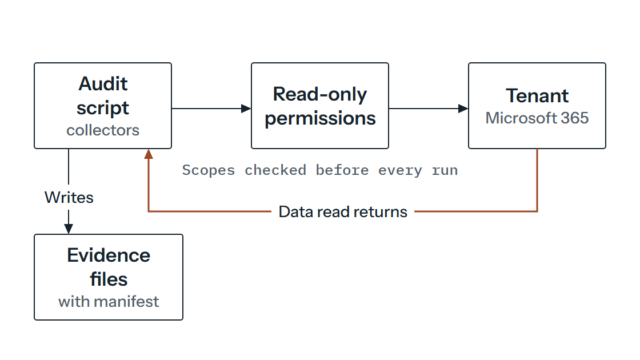
For unattended use, a certificate with an app registration is a documented route. The app-only guide needs an administrator to consent to the permission scopes and shows Get-MgContext returning AuthType : AppOnly with the granted scopes, a check worth building into every script. The certificate is loaded from the current user’s or the local machine’s personal store, which means the account the script runs as has to be able to see it. A client secret works too, and the guide recommends PowerShell 7 or later for it. A managed identity, where the script runs in Azure, is described as needing no secret to provision or rotate.
Another quiet change: the guide says the sign-in persists across PowerShell sessions because the module securely caches the token, and describes -ContextScope Process for connecting as a different identity. On a shared administration host, decide deliberately which identity each script should run as.
Installing it, and proving it before you switch
The installation page describes the SDK as Microsoft.Graph for the v1.0 endpoint and Microsoft.Graph.Beta for beta, installed separately. Microsoft recommends v1.0 for scripts because beta endpoints are in preview and, in Microsoft’s words, “can change”. PowerShell 7 or later is recommended. In Windows PowerShell it needs 5.1, .NET Framework 4.7.2 or later, an updated PowerShellGet and an execution policy of RemoteSigned or less restrictive. The AzureAD module, by contrast, is supported only in PowerShell 5.1, so moving to PowerShell 7 is available but is a second change. Doing both at once leaves two variables in any difference you find, and we’d separate them.
The main module installs all 38 sub-modules, and cmdlets exist only for the modules installed. Pared-down installs are possible, but each cmdlet lives in a specific sub-module (the Set-MgUserLicense reference names Microsoft.Graph.Users.Actions, for example), so build the install list from your inventory. Record Get-InstalledModule Microsoft.Graph output in your run logs, so a change in behaviour can be tied to a change in version.
The migration guide’s next steps say to uninstall the AzureAD module before installing the new one. The guide doesn’t say whether both modules can share a machine, so keep the old script on its current host and build the new one on a separate test host.
Once the new script exists, we’d run the two side by side, in this order.
- Take the read-only scripts first. Run the old and new versions on the same day against the same tenant, write both outputs to files and compare them field by field, counts first. Explain every difference or fix the new script.
- For scripts that write, use a test tenant or a small pilot set of accounts. The
Set-MgUserLicensereference lists-WhatIfand-Confirmin its syntax, but test that they do what you expect before relying on them. - Widen in rings: pilot accounts, then one department or site, then everyone, with the old script kept runnable until the new one has behaved for a few cycles.
Only retire the old script when the comparison is clean and the permissions list has been reviewed. Keeping the scripts in version control, one migration per change, makes the next difference easy to trace.
The scripts nobody owns are the hardest to deal with, because no one can say what breaks if they stop. If that describes some of yours, get in touch and we’ll help you work out which to look at first.