
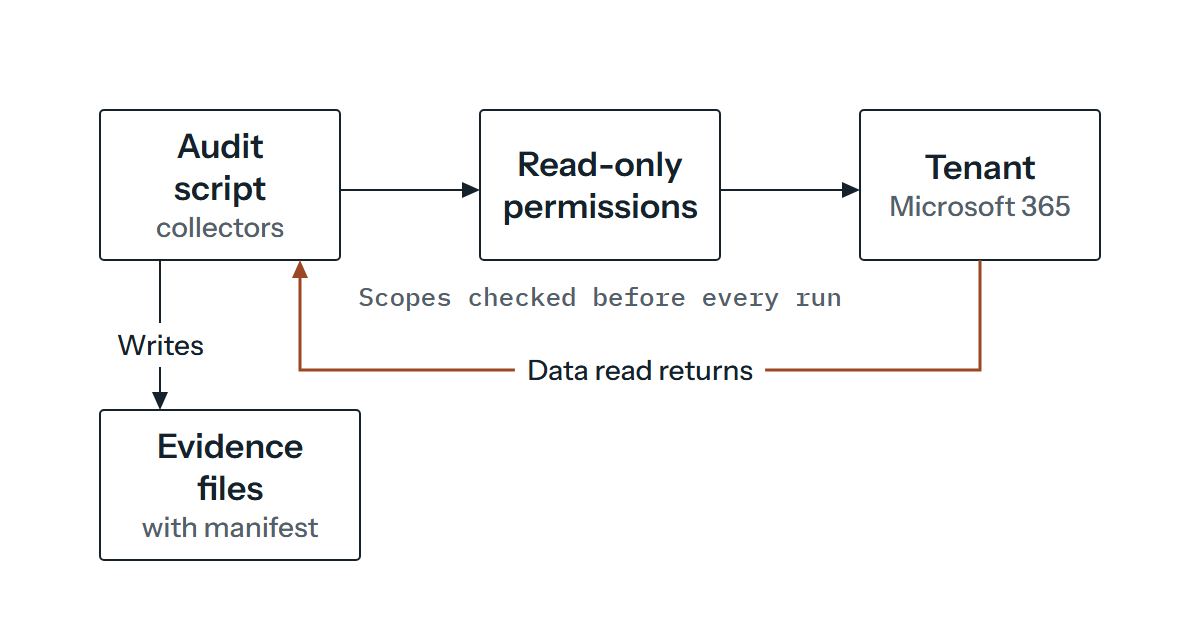
The first rule of auditing somebody’s Microsoft 365 tenant is that the audit mustn’t change it. That sounds too obvious to say until you look at how many audit scripts get put together: one sign-in with whatever the administrator happened to hold, a few cmdlets pasted from a blog post, and nothing between the script and an Update- or Remove- call except the author’s good intentions. Good intentions don’t survive a copy-and-paste edit, a wildcard or a rushed afternoon. If you want a toolkit you can hand to a colleague, or run against a tenant that isn’t yours, “read-only” has to be something the design enforces and something you can demonstrate afterwards.
What follows is how we’d build one with Microsoft Graph PowerShell. It assumes you’re comfortable with PowerShell, can register an application in Microsoft Entra ID and have an administrator on hand who can grant consent. It’s about structure and evidence rather than a list of checks, so every snippet is an illustration with placeholders where a real app or tenant would go. It’s the groundwork under any configuration and access review, which is how we’d frame a security assessment or audit of a tenant.
Choose the identity before you choose the cmdlets
Microsoft Graph PowerShell supports two kinds of access, delegated and app-only, and the choice decides what “read-only” even means. Under delegated access the toolkit acts for a signed-in person, and what it can do is limited by both the scopes it was granted and that person’s own rights. That’s a useful property: a token carrying only read scopes can’t write through Graph, even when the person behind it is a Global Administrator.
App-only access is different. The application calls Graph as itself and can reach any data its permission covers. Consent has to come from an administrator, and only a Privileged Role Administrator or Global Administrator can give it for application permissions. So the grant on the app becomes the real boundary, and the app’s credential becomes the thing you have to look after.
We’d use both, on a dedicated app registration: delegated sign-in for exploring and app-only with a certificate for the repeatable runs. The authentication guide says a custom application is for use “if you need to isolate and limit the consent permissions granted” for Graph PowerShell, and for an audit of someone else’s tenant that’s usually what you want, because the shared app doesn’t give you that isolation.
Pick scopes from the API page, not from the cmdlet
Find-MgGraphCommand is handy for discovering which API path a cmdlet calls, and it lists permissions too. Those permissions don’t indicate privilege levels, and the sample output for Get-MgUser shows ReadWrite permissions sitting beside the Read ones. If you built your consent request from that list you’d ask for far more than you need.
The API page for the call you’re making names the least privileged permission, and that’s where the scope comes from. Conditional Access is a good example of why you check rather than guess. The permissions reference lists Policy.Read.ConditionalAccess as its own permission, but the page for listing Conditional Access policies names Policy.Read.All as the least privileged option for both delegated and application access, with no higher one listed. Directory.Read.All is the highest privileged read-only permission for Entra resources, which is a good reason to treat it as a last resort.
Here’s an illustration of how a small review might map areas to read scopes. It isn’t a recommended set. Your checks decide yours, and each line needs confirming against the page for the exact call.
| Scope | What the permissions reference says it covers | Possible use in a review |
|---|---|---|
Policy.Read.All | Reading the organisation’s policies without a signed-in user | Exporting Conditional Access policies |
RoleManagement.Read.Directory | Reading directory role templates, roles and memberships | Listing who holds administrative roles |
User.Read.All | Reading user profiles | Building an account inventory |
Application.Read.All | Reading applications and service principals | Reviewing registered and enterprise apps |
Read scopes aren’t harmless, either. UserAuthenticationMethod.Read.All, for instance, is described as reading authentication methods such as phone numbers and Authenticator app settings, though not secrets like passwords. That’s still personal data, which is why the part on evidence below matters as much as the scopes.
Sign in with a certificate and refuse to run if the grant is wrong
For unattended runs, Connect-MgGraph takes a client ID, a tenant ID and a certificate thumbprint, and loads the certificate from the current user’s or the local machine’s personal store. The private key stays in the store and the script carries only a thumbprint, which isn’t a secret.
The module also accepts a client secret, but a secret that exists as text tends to end up in shell history, tickets and repositories, and that’s our reason for preferring a certificate. For work that runs inside Azure there’s also -Identity for a managed identity, which the guide describes as needing no secret to provision or rotate.
Set -ContextScope Process explicitly as well. Microsoft’s guide says the module caches the token across sessions under the default CurrentUser context scope, which matters for delegated sign-ins, and for an audit of someone else’s tenant you don’t want a sign-in left on your machine. The process scope keeps the sign-in to the session and removes the question.
The step people skip is checking what the sign-in granted. Get-MgContext reports the authentication type and the scopes in the session, so the toolkit can compare them to an allowlist before it does anything else.
# Illustration only: placeholders in angle brackets, not a tested tool.
$allowed = @('Policy.Read.All', 'RoleManagement.Read.Directory', 'User.Read.All')

Connect-MgGraph -ClientId '<audit-app-client-id>' -TenantId '<tenant-id>' `
    -CertificateThumbprint '<certificate-thumbprint>' -ContextScope Process -NoWelcome

$context = Get-MgContext
$unexpected = $context.Scopes | Where-Object { $_ -notin $allowed }

if ($context.AuthType -ne 'AppOnly' -or $unexpected) {
    Disconnect-MgGraph
    throw "Refusing to run. Unexpected permissions: $($unexpected -join ', ')"
}
In an app-only session AuthType reads AppOnly and Scopes lists the application’s permissions (the sample output in the app-only guide), which is what this relies on. A delegated session lists extras such as openid and profile, so a delegated version needs a longer allowlist. And the check has a blind spot. It inspects the token, not the service principal behind it. An app can also be given privileges through an RBAC system or custom administrative roles, and Entra built-in roles don’t limit it to Graph calls. A clean Scopes list says nothing about those, so review the app’s role assignments separately.
Paging, throttling and the failure nobody notices
Graph returns long lists a page at a time. For GET /users the paging guidance gives a default of 100 results per page, with an @odata.nextLink to follow until it stops appearing. The cmdlets wrap that: Get-MgUser and Get-MgIdentityConditionalAccessPolicy both have -All and -PageSize, and -Property limits what comes back. Leaving out -All risks stopping at the first page: 100 is the REST default page size for /users, so you could audit the first hundred users and call it the tenant.
Throttling arrives as HTTP 429 with a suggested wait, and the throttling guidance is clear that immediate retries are a mistake, because all requests accrue against your limits. A large volume of writes is more likely to be throttled than reads, so a read-only toolkit is gentler, but it isn’t exempt. Regular scanning of collections is a pattern that attracts throttling too, so take snapshots at sensible intervals and don’t poll. The Graph SDKs are described as shipping retry handlers, but that isn’t stated for each PowerShell cmdlet, so we wouldn’t build on it.
What we’d build on is a rule about failure. The defect to worry about most in an audit is the quiet one, where a collector hits a limit, returns half a list and writes a tidy file. An administrator missing from the role export looks exactly like a clean result. So each collector should either finish and record how many items it got, or throw and mark the run incomplete, and the report should say “not collected” and never show an empty list.
Output that can be compared and defended
The collectors should write structured data and nothing else: one JSON file per source, ordered by object ID, so two runs should produce files that differ only where the tenant differs, provided nested collections are ordered too. Keep timestamps out of the data and in a manifest. Analysis then reads the files and never the tenant, which means you can rerun your findings logic as often as you like without making another call.
# Illustration only: assumes the guard above has passed and the folder exists.
$policies = @(Get-MgIdentityConditionalAccessPolicy -All)
if ($policies.Count -eq 0) {
    Write-Warning 'No policies returned. Confirm this is the tenant and not a failed read.'
}

ConvertTo-Json -InputObject @($policies | Sort-Object -Property Id) -Depth 20 |
    Out-File -FilePath '.\evidence\conditional-access-policies.json'
The explicit -Depth matters. The PowerShell 7.5 reference says ConvertTo-Json defaults to a depth of 2 and warns when objects go deeper. Conditional Access policies nest their conditions (conditions contain users, applications and their includes and excludes), so they’re likely to go deeper than two levels, and the warning appears on the console and not in the file. Set -Depth explicitly and check the output. Wrapping the sorted policies in @() keeps a single policy an array, and the count check stops an empty read passing as an empty tenant.
The manifest records which tool version ran, the start time in UTC, the authentication type and scopes from Get-MgContext, each collector’s item count and a hash of each file. Get-FileHash uses SHA256 by default. Write each run to a new folder and never overwrite an old one. That’s idempotence in the sense that matters here: running the toolkit twice changes no configuration in the tenant and nothing in earlier evidence.
Showing it’s read-only instead of saying so
We’d want three checks, because each fails in a different way.
The first is the grant, covered above: the allowlist at run time, plus a review of the app’s permissions and role assignments.
The second is the code. A static scan can list every command the script calls and flag anything that isn’t a Get- command or on a short allowlist of plumbing.
# Illustration only: the path is a placeholder.
$tokens = $null
$errors = $null
$ast = [System.Management.Automation.Language.Parser]::ParseFile(
    'C:\Audit\Collect-Tenant.ps1', [ref]$tokens, [ref]$errors)

$calls = $ast.FindAll({ param($node) $node -is [System.Management.Automation.Language.CommandAst] }, $true)
$names = $calls | ForEach-Object { $_.GetCommandName() }

$plumbing = 'Connect-MgGraph', 'Disconnect-MgGraph', 'Sort-Object', 'ConvertTo-Json', 'Out-File', 'Where-Object', 'ForEach-Object'
$review = $names | Where-Object { $_ -and $_ -notlike 'Get-*' -and $_ -notin $plumbing }
$unresolved = @($names | Where-Object { -not $_ }).Count
Anything in $review needs a person to look at it, and Invoke-MgGraphRequest always will, because it can issue any HTTP method. $unresolved counts calls whose name the parser couldn’t work out. The documentation says GetCommandName returns null when the name isn’t known statically, as in & $someCommand, so a non-zero count should fail the check. This is a tripwire and not a proof. Treat the Get-* exemption as a starting point: a Get- name doesn’t guarantee a read, and a user-defined function called Get-Anything can write. So check the method each cmdlet uses with Find-MgGraphCommand -Command, which shows the HTTP method it maps to, and allowlist knowingly anything that isn’t a plain GET. The scan also can’t see aliases, strings passed to Invoke-Expression or calls made inside imported modules.
The third check is at the service. Microsoft Graph activity logs record the HTTP requests Graph receives for a tenant, which gives you a tenant-side record of what was sent, independent of the script’s own logging. You need a Microsoft Entra ID P1 or P2 licence and a diagnostic setting sending the logs to a destination such as Log Analytics, and events normally arrive within 30 minutes but can take up to two hours. A query like this one (an illustration, using columns that appear in Microsoft’s own sample queries) lists anything the audit app sent that wasn’t a GET.
MicrosoftGraphActivityLogs
| where TimeGenerated > ago(7d)
| where AppId == "<audit-app-client-id>"
| where RequestMethod != "GET"
| project TimeGenerated, RequestMethod, RequestUri, ResponseStatusCode
Expect one wrinkle. JSON batching sends its requests as a POST to the $batch endpoint even when every request inside is a read, so either avoid batching in the toolkit or whitelist it knowingly. And if the logs weren’t switched on before the run, there’s nothing to query afterwards, so that’s a decision for the start of the engagement.
Even with all three in place, “read-only” has a limit worth stating. The run still creates sign-in events, uses up throttling allowance and copies data about people onto a disk. It can’t change the tenant’s configuration, which is the claim you can make and defend, and no more than that.
Where the evidence goes
The files you collect are records of names, role holdings and, in some cases, authentication methods. Treat the evidence folder as sensitive as the tenant it came from: a restricted location, a retention period agreed up front, and no pasting of extracts into email or tickets. The toolkit’s own log should say what ran, when, as which application, how many items each collector returned and which errors occurred. It should never contain response bodies, tokens or secrets. Keep tenant and client IDs as parameters, not constants in the script, so the toolkit itself can be shared without carrying anyone’s details.
When the review is over, remove the app’s consent and its certificate rather than leaving a standing read-everything identity behind. We’d agree that with whoever owns the tenant before the first run, not after the last.
If you’re planning a configuration or access review of a Microsoft 365 tenant and want to talk through the permissions it needs and where the evidence should live, get in touch and tell us what you’re working with.