Picture an administrator who builds a policy for all users and all cloud apps, picks a grant control that sounds sensible and saves it as On. They test it from their own laptop, which already meets every requirement, and it works. Then a new starter on an unmanaged phone fails, a scanner stops sending mail, and the administrator’s own next attempt to get back in and edit the policy fails as well.
None of that needs a clever mistake. Microsoft Entra Conditional Access combines signals such as user, device and location to decide whether a sign-in gets in, and it makes that decision for everyone the policy covers, including the person who wrote it. What follows is how we’d get a policy in front of the tenant before it’s enforced, the sort of thing that comes up in Microsoft 365 and Azure work on identity. It assumes you have Microsoft Entra ID P1 licences, which Conditional Access needs (Microsoft 365 Business Premium includes access to the features too).
Settle the way back in first
Before any policy goes near production, create the account you’d use if all the others stopped working. Microsoft calls these emergency access accounts, and you’ll also hear them called break-glass accounts. Create two or more. They should be cloud-only accounts on the *.onmicrosoft.com domain, not tied to any one person’s phone or token, with a permanent Global Administrator assignment if you use Privileged Identity Management. At least one must be excluded from all Conditional Access policies, because in an emergency you don’t want a policy standing between you and the fix.
Two details are easy to miss. Give these accounts a different strong sign-in method from your other administrators (a FIDO2 security key, say, if the rest use the Authenticator app), so that one failure doesn’t take out both. And monitor their sign-ins with an alert, and test them at least every 90 days and whenever your IT staff or subscriptions change, because an emergency account you’ve never tried is only a theory. In late June 2024 Microsoft’s page also noted that from July 2024 Azure teams would begin rolling out extra tenant-level measures requiring MFA, and recommended FIDO2 or certificate-based authentication (when configured as MFA) for these accounts rather than relying on a long password alone.
Policies you build from Microsoft’s templates won’t do the exclusion for you, because they exclude only the person creating the policy. After creating one, open it and add the emergency accounts.
Let the tenant show you before it enforces
Report-only mode is a policy state that evaluates every sign-in against the policy and logs the outcome without enforcing anything. You set it with the Enable policy toggle, and policies made from templates start that way. Bear in mind that switching an existing policy from On to Report-only turns its enforcement off.
The results appear in the Conditional Access and Report-only tabs of a sign-in’s log details, under Identity > Monitoring & health > Sign-in logs. For the wider picture there’s the insights and reporting workbook at Protection > Conditional Access > Insights and reporting. It needs a Log Analytics workspace with your sign-in logs streamed to it, and only sign-ins after the integration appear, so set that up first. It can look back from 4 hours to 90 days and separates enabled policies from report-only ones.
Read the results with their limits in mind. Report-only doesn’t prompt users for MFA or terms of use, so a requirement that needs the user to do something is reported as “User action required”, and a clean report doesn’t prove people would satisfy the control. Policies that target user actions, such as registering security information, can’t be evaluated in report-only at all. There’s also a quirk in the other direction: report-only policies requiring compliant devices may prompt users on Mac, iOS and Android to pick a device certificate, so Microsoft suggests excluding those platforms from report-only policies that check compliance.
The What If tool (Protection > Conditional Access > Policies > What If) answers a different question, which is which policies would apply to this user in this scenario. All it needs is a user or workload identity, and it lists the policies that apply and, for those that don’t, the first condition that wasn’t met. It evaluates enabled policies only, so it won’t show you a report-only one, and it doesn’t test service dependencies, so a Teams result takes no account of a policy that applies to Exchange Online. A simulated run is no substitute for an actual test run either. Microsoft’s planning page lists a non-administrator test user and a group containing that user as prerequisites, so set both up before you start.
Where lockouts hide
The troubleshooting page lists configurations to avoid when a policy covers all users and all cloud apps, and it makes a handy checklist. A block, on its own, blocks everybody. Requiring a compliant device blocks users who haven’t enrolled yet, including from the Intune portal, and an administrator without an enrolled device can’t get back in to change the policy. Requiring a hybrid joined device can block users who don’t have one, and requiring an app protection policy can do the same where no Intune policy exists. The portal itself shows a “Don’t lock yourself out!” warning for All users and All apps, and offers to exclude you, the current user.
The compliant-device case has a wrinkle. Microsoft’s compliant-device policy page says the control doesn’t block Intune enrolment or the Company Portal, and the cloud apps page says device enrolment calls are excluded from a compliant-device policy aimed at all cloud apps, yet the troubleshooting page warns that unenrolled users get blocked. Since the pages differ, test it with a test user on an unenrolled device rather than assuming. Either way, a person on a device that isn’t compliant yet still has other things to do. We’d lean towards the template that accepts a compliant device, a hybrid joined device or MFA (“require one of the selected controls”) rather than insisting on compliance alone.
Legacy authentication is the next candidate. Clients using it can’t do MFA and don’t pass device state, so grant controls such as requiring MFA or a compliant device block them. In practice that points at older mail protocols such as IMAP, POP and SMTP and older Office versions, so a scanner or line-of-business app that emails through Microsoft 365 might be one (an illustration, not a finding). The block-legacy template starts in report-only and targets Exchange ActiveSync clients and Other clients. Microsoft’s steps say to exclude any accounts that must keep using legacy authentication, and at least one account so you can’t lock yourself out. Find out what’s using it from the sign-in logs before you press On.
Locations deserve caution too, because a location-based block is restrictive and needs thorough testing. Location comes from the public IP address, and with a cloud-hosted proxy or VPN it’s the proxy’s address that counts, which makes keeping an address list up to date nearly impossible. If you block countries where nobody should sign in, exempt your emergency accounts.
Registration timing is the last one. If a policy demands MFA before a new user can register for it, they have nothing to satisfy it with. Microsoft’s registration page shows an example policy on the Register security information user action that requires MFA or a Temporary Access Pass to register from outside trusted locations. With that in place, administrators have to issue new users a Temporary Access Pass, a time-limited credential that satisfies MFA requirements (it doesn’t work for guest users). Because user actions can’t be tested in report-only, try this one with a test user.
Policies you didn’t write
Microsoft’s managed policies page describes three policies made available in Microsoft Entra tenants, covering MFA for admins accessing Microsoft Admin Portals, MFA for per-user MFA users and MFA with reauthentication for risky sign-ins. They’re listed under Protection > Conditional Access > Policies. You can change a policy’s state and its excluded identities, but you can’t rename or delete it. If one is left in report-only, Microsoft will turn it on no less than 90 days after introduction, with an email and a Message center post 28 days before. Each has its own targeting conditions, such as tenants where security defaults aren’t on. If they appear in your tenant, add your emergency accounts to the exclusions and watch their report-only results like any other policy.
A safer order
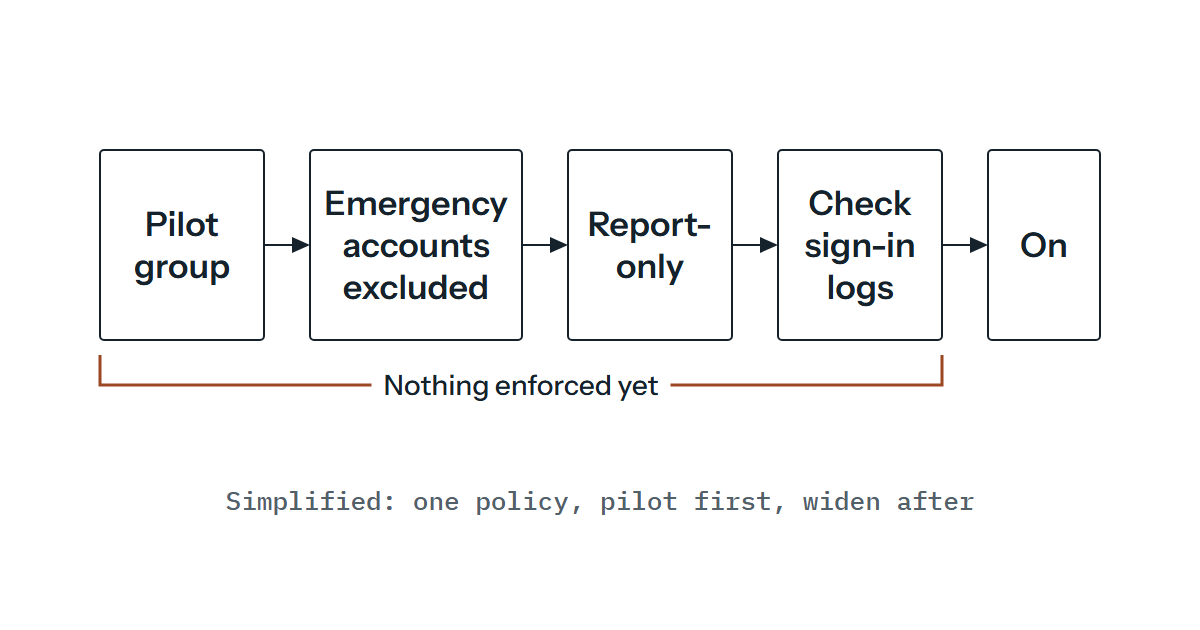
Put as steps, this is the order we’d use for any new policy, and it follows Microsoft’s advice.
- Create the emergency accounts and prove they can sign in.
- Build the policy scoped to a pilot group that includes a non-administrator test user, with the emergency accounts excluded. Service accounts that can’t complete MFA need excluding too, or replacing with managed identities.
- Save it in report-only mode.
- Check the sign-in logs and the workbook across a normal working period, and run What If for the awkward cases.
- Tell users what will change.
- Move the pilot to On, watch, then widen the scope.
For a small tenant that’s usually a sound start: two emergency accounts, a few template policies and a proper stretch in report-only before anything is enforced.
If it has already happened
The documented way out is short. See whether another administrator hasn’t been blocked yet, because they can disable the policy. If nobody can, submit a support request. Microsoft says support can review the case and, after confirmation, update the policies preventing access. That’s exactly what the emergency account saves you from. Once you have access again, the planning page gives you the rollback options, which are to disable the policy or to exclude a user or group (sparingly, and adding them back as soon as possible). If you do raise a case, collect the user, time, application, client type and the sign-in’s correlation ID.
Names and a record of changes
Name policies so they explain themselves, using a sequence number, the apps, the response, who it covers and when (CA01-style). Keep a change log of your own too, recording what changed, who did it, why and how to undo it. The audit log (Identity > Monitoring & health > Audit logs, Service set to Conditional Access) holds policy changes for 30 days by default, so send it to a Log Analytics workspace if you need longer.
If you’ve got a policy half built and want a second pair of eyes on the exclusions and emergency accounts before it goes to On, get in touch and we can look at it with you as a configuration review, where that’s agreed in the scope.