
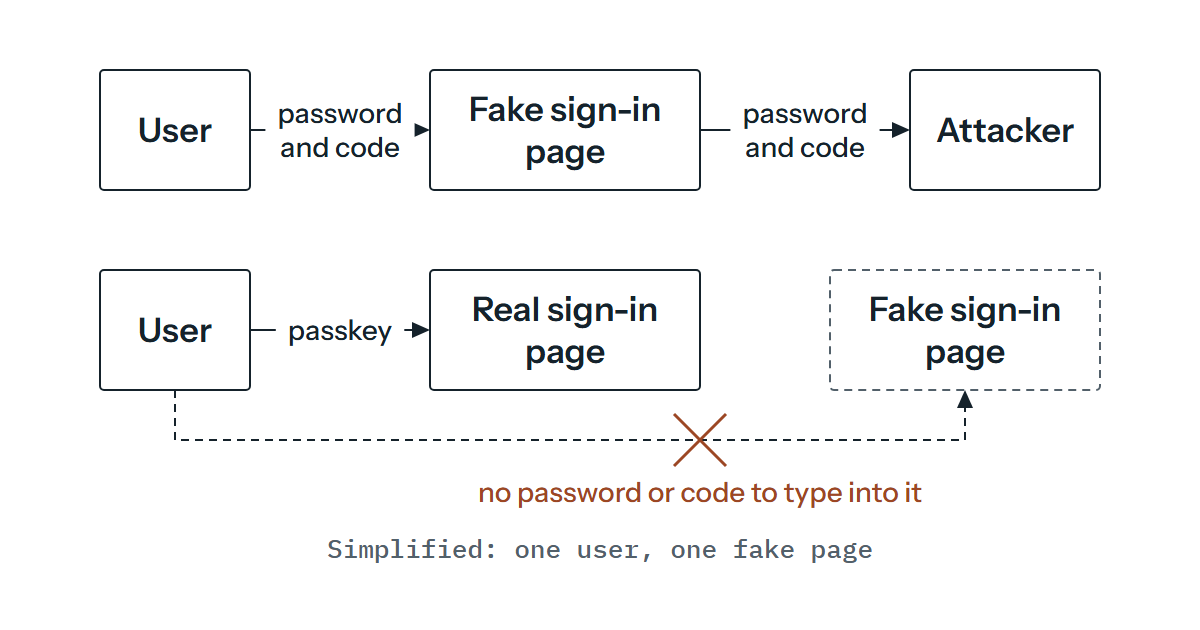
You’ve moved from passwords alone to multifactor authentication, perhaps with push approvals or one-time codes, and that was the right step. The catch is that a convincing fake sign-in page can collect a password and the code or relayed approval that goes with it, then use them on the real site. Passkeys are aimed at that gap, and Microsoft Entra ID supports them. The technology is the easy part. What takes the thought is everything around it, such as who goes first, how people register, what happens when a phone is lost and how you enforce it without locking out your own administrators.
What “phishing-resistant” means here
When someone signs in with a passkey, there’s no password or code to type into the wrong place. Microsoft’s Authenticator documentation describes users signing in with a passkey and completing phishing-resistant authentication with their biometric sign-in or device PIN, and its authentication strengths use “phishing-resistant” as the name for a group of methods. That’s how we’re using the term here. It means methods Microsoft puts in that group, not a promise that nothing can go wrong.
It matters which kind of passkey you mean, because the documentation says Entra ID supports device-bound passkeys, stored on a FIDO2 security key or in Microsoft Authenticator. Microsoft says it’s investing in both synced and device-bound passkeys for work accounts but gives no date for synced ones, so we’d plan around device-bound and revisit synced later. In practice that means a passkey is attached to one physical thing, and that thing can be lost, which is why recovery gets its own section below.
Who goes first
Start where a stolen sign-in would hurt most. Administrators come first, because one compromised administrator account can undo a great deal. Then come the people whose accounts can move money, approve payments, reach sensitive data or act for someone senior. Everyone else can follow once you’ve seen how registration and support go.
Starting there also keeps the first group small enough to look after personally. If your administrators are signing in with the same push approval as everyone else, moving them is a sensible first step, and it builds on the second factors we covered in adding two-factor authentication on laptops and the baseline in password management.
Registration, and getting back in
Registration is where a plan like this gets tested, and it’s a natural point for a security and compliance review of who holds which methods. A user must have completed multifactor authentication within the past five minutes before they can register a passkey, so the first one needs an existing method to lean on. The “Allow self-service set up” setting matters too, because if it’s set to No, users can’t register in Security info even though the method is enabled. Guest users can’t register a passkey at all, and if a person’s UPN changes they need to delete the passkey and add a new one.
For people who have lost their strong method, or are being onboarded fresh, Microsoft documents the Temporary Access Pass: a time-limited passcode, single or multiple use, which users can sign in with to set up passwordless methods, and which Microsoft documents as making recovery easier when a strong method is lost. The default lifetime is one hour and the default maximum is eight, though you can change both. We’d write down who is allowed to issue one and how the person asking is identified, because a recovery route that’s easy to talk your way into undoes the point of the exercise.
Give each person a second way in, too. Microsoft’s guidance on emergency accounts, below, exists because administrators can be locked out, and it says those credentials shouldn’t be tied to employee-supplied devices such as phones. We’d apply the same reasoning to everyone, since a single device-bound passkey on a single phone is a single point of failure.
Security keys or Authenticator
You have two places to hold a device-bound passkey, and they differ in ways worth knowing. Microsoft Authenticator keeps the passkey on the person’s own phone, but the Authenticator page lists Android 14 or later and iOS 17 or later as requirements, so older phones are out. Hardware security keys need buying and handing out, but they don’t depend on a phone, which is useful for some people (the compatibility page below lists platform limits for keys).
Attestation is the setting to understand before you tick it. When enabled, Entra tries to verify the legitimacy of the passkey provider, and for Authenticator it uses Apple and Google services to do so. Heavy use of those services can make registration fail, an outage blocks registrations that need attestation, and cross-device registration isn’t available when attestation is on. Attestation is also checked only at registration, so turning it on later doesn’t stop people who registered without it from signing in. Key restrictions identify models by AAGUID, a 128-bit identifier for the make and model of a key or passkey provider. If you remove an AAGUID you’d previously allowed, people who registered that method can no longer use it to sign in. Collect what’s already in use before you restrict anything.
Check your devices and browsers against the compatibility matrix rather than assuming. As at May 2025 it shows, for example, that Firefox on Android isn’t supported, that security key registration doesn’t work in browsers on iOS or macOS and that BLE security keys aren’t supported on iOS or Android. If some of your staff use Linux, ChromeOS or older machines, put them in the pilot rather than hoping.
Break-glass accounts before you tighten anything
Before you require anything, sort out your emergency access accounts. Microsoft’s guidance is two or more cloud-only accounts on the onmicrosoft.com domain, not federated or synchronised, with a passkey (FIDO2) as the recommended method and phishing-resistant MFA required for them too. It also advises using a method different from your normal administrators’ (a FIDO2 security key if they use Authenticator, for instance), making sure automated clean-up for lack of use can’t remove the credential, storing it safely, watching the sign-in logs and testing the accounts regularly. A policy that demands a method nobody can produce is how you lock yourselves out, so check these accounts can still sign in under every policy you create.
Enforcing it with authentication strength
Enabling a method lets people use it, but it doesn’t make anyone stop using the old ones. For that you need Conditional Access with an authentication strength, which specifies the combinations of methods that can satisfy access to a resource. There’s a built-in Phishing-resistant MFA strength, and the page’s example of what it allows is Windows Hello for Business, a FIDO2 security key or certificate-based authentication. Its table lists Authenticator phone sign-in under the MFA and Passwordless strengths but not under the phishing-resistant one, and it says nothing either way about passkeys in Authenticator. The Authenticator passkey page tells you to use the built-in strength or a custom one that adds the Authenticator AAGUIDs. We’d test that a pilot user can satisfy the policy before you rely on it, and settle your emergency accounts first, as the section above explains.
Two limits matter. Conditional Access is evaluated after the first sign-in step, so authentication strength doesn’t stop someone typing a password. It requires the stronger method before they can continue. You also can’t combine “Require multifactor authentication” and “Require authentication strength” in one policy, and you’ll need Microsoft Entra ID P1 to use Conditional Access at all.
Pilot, rollback and telling people
Pilot with a handful of administrators and a few willing users on varied devices. For a small organisation that can be as modest as two or three administrators with security keys and one or two volunteers. Enable the method for a security group, since only security groups are supported when scoping, and keep the enforcing policy aimed at that same group until you’re satisfied. Rolling back should mean narrowing the group or switching the enforcement off, because registered passkeys stay registered until they’re deleted. It’s worth recording what the pilot teaches you too, such as which devices failed, what the support calls were about and how long recovery took.
Tell people before, not after. Say what’s changing and when, what they’ll need (a recent phone or a key you’ll send them), how to register and who to contact if they lose the device. A short guide written for your own tenant and devices will serve people better than a long generic one.
Who would be in your first pilot group, and what would they do if their phone went missing on a Friday afternoon? If you’d like to work that out for your own tenant, get in touch and we’ll talk it through.